
Bạn mệt mỏi vì mỗi lần mở danh sách Wifi lên là thấy hàng chục cái tên lạ hoắc của hàng xóm? Bạn lo lắng máy tính tự động kết nối vào các mạng Wifi công cộng không an toàn? Wi-Fi Filter Tool v1.2 chính là giải pháp giúp bạn làm chủ hoàn toàn danh sách mạng không dây trên Windows.
1. Wi-Fi Filter Tool là gì?
Wi-Fi Filter Tool là một tiện ích miễn phí và di động (Portable) từ Sordum, cho phép bạn thiết lập danh sách Cho phép (Whitelist) hoặc Chặn (Blacklist) đối với các tên mạng (SSID) xung quanh.
Thay vì phải gõ những dòng lệnh phức tạp trong CMD (netsh wlan add filter...), công cụ này cung cấp một giao diện trực quan để bạn ẩn đi bất kỳ mạng Wifi nào bạn không muốn thấy hoặc chỉ cho phép máy tính nhận diện đúng mạng Wifi của nhà mình.
2. Các tính năng chính đáng chú ý
- Chặn SSID cụ thể: Bạn có thể chọn ẩn đi các mạng Wifi của hàng xóm có tên gây khó chịu hoặc tín hiệu quá yếu.
- Chế độ Whitelist (Chỉ cho phép): Đây là tính năng bảo mật cao nhất. Khi kích hoạt, Windows sẽ ẩn toàn bộ các mạng Wifi khác và chỉ hiển thị duy nhất những mạng mà bạn đã thêm vào danh sách tin tưởng.
- Ngăn tự động kết nối: Loại bỏ hoàn toàn nguy cơ máy tính tự động “nhảy” vào các mạng Wifi mở (Open Wi-Fi) vốn tiềm ẩn nhiều rủi ro về mã độc và đánh cắp dữ liệu.
- Giao diện kéo thả: Bạn chỉ cần chọn mạng Wifi đang hiện diện và thêm vào danh sách chặn chỉ với một cú click.
- Không cần cài đặt: Chạy trực tiếp từ USB, cực kỳ nhẹ và không làm chậm hệ thống.
3. Tại sao game thủ và người dùng kỹ thuật cần công cụ này?
Tại chepgame.net, chúng tôi nhận thấy việc quản lý danh sách Wifi mang lại nhiều lợi ích thực tế:
- Giảm nhiễu danh sách: Khi bạn chỉ thấy duy nhất mạng Wifi 5GHz hoặc 6GHz của mình, việc kết nối sẽ nhanh chóng và chính xác hơn.
- Bảo mật tối đa: Đặc biệt quan trọng khi bạn thường xuyên mang laptop ra ngoài. Việc giới hạn chỉ kết nối với mạng tin tưởng (Whitelist) sẽ giúp bảo vệ các thông tin đăng nhập và dữ liệu cá nhân.
- Tối ưu hóa hiệu suất: Windows sẽ không mất tài nguyên để quét và duy trì danh sách hàng chục mạng Wifi không liên quan chạy ngầm.
4. Hướng dẫn sử dụng nhanh
- Mở ứng dụng: Chạy file
WfFilter.exe. - Thêm mạng vào danh sách: * Bấm vào nút Add (Dấu cộng) để thêm SSID thủ công.
- Hoặc chuột phải vào danh sách mạng đang quét được và chọn Add to Blacklist hoặc Add to Whitelist.
- Kích hoạt bộ lọc: Sau khi thêm xong, các thay đổi sẽ có hiệu lực ngay lập tức trong menu Wifi của Windows.
- Xóa bộ lọc: Nếu muốn quay lại như cũ, bạn chỉ cần chọn tên mạng trong danh sách của phần mềm và bấm nút Delete.
Thông tin tóm tắt cho SEO:
- Tiêu đề bài viết (Title Tag): Wi-Fi Filter Tool v1.2: Cách ẩn mạng Wifi hàng xóm trên Windows 10/11.
- Từ khóa chính (Keywords): Wi-Fi Filter Tool, chặn wifi hàng xóm, ẩn ssid wifi windows, cách lọc danh sách wifi, bảo mật kết nối không dây.
- Mô tả ngắn (Meta Description): Hướng dẫn dùng Wi-Fi Filter Tool v1.2 để dọn dẹp danh sách SSID và chỉ cho phép kết nối với các mạng Wifi tin tưởng. Tăng cường bảo mật và sự gọn gàng cho PC.
Lời khuyên từ Admin: Nếu bạn đang sử dụng các thiết bị nhà thông minh (Smart Home) hoặc NAS trong mạng nội bộ, hãy sử dụng tính năng Whitelist để đảm bảo máy tính luôn ưu tiên kết nối vào đúng băng tần ổn định nhất, tránh việc tự động chuyển sang các mạng khách (Guest Network) có tốc độ chậm hơn.
Ngoài việc lọc Wifi, bạn có muốn mình hướng dẫn cách tối ưu hóa băng thông (QoS) trên Router để ưu tiên dung lượng cho việc tải game và stream trên chepgame.net không?
Wi-Fi Filter Tool v1.2
Sordum Team | September 29, 2025 | 39 Comments

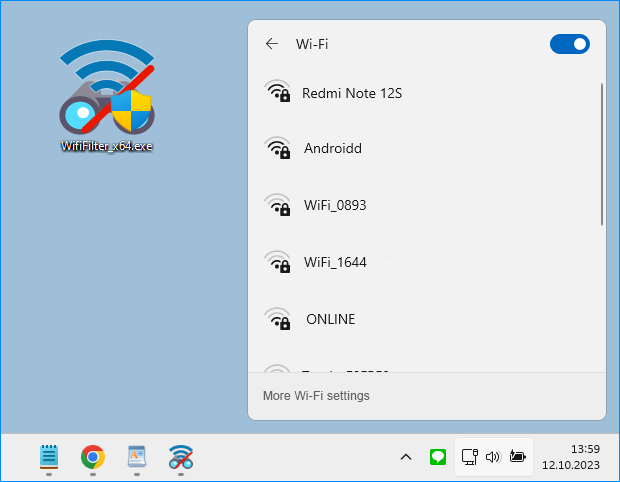
Computers with Windows will show you a list of available WiFi networks in your surrounding , If you have a lot of wireless access points within your area, then you could have a lot of SSIDs (network names) in your available wireless networks list, to find the target Wi-Fi network you need to take some time . You may also want to block users from connecting some specific WLAN SSIDs, to ensure that corporate devices within corporate premises are only using the corporate network.
you can remove one or all of them from your list of Network Profiles or available networks. Windows doesn’t allow you to hide Wi-Fi networks Windows via a graphical user interface. You are required to run a few commands on Administrator Command Prompt.
1. Whitelist Only Wi-Fi Connections You Want
netsh wlan add filter permission=allow ssid=”WIFI NAME” networktype=infrastructure
2. Blacklist Nearby Wi-Fi Connections From Your List of Networks
netsh wlan add filter permission=block ssid=”WIFI NAME” networktype=infrastructure
There are many more commands you can use but if you are not an advanced windows user, this method will be complicated for you therefore we have coded a potable freeware to simplify all these processes.
Wi-Fi Filter Tool v1.2 – (Monday, September 29, 2025)
1. [ FIXED ] – The refresh button isn’t updating the drop-down list.
2. [ FIXED ] – If wifi is not connected, the wifi list cannot be shown.
3. [ FIXED ] – If location is disabled in Windows 11, The list cannot be updated.
4. [ FIXED ] – Mouse flickers in input boxes.
5. [ ADDED ] – An option to open the Location settings in the file menu.
6. [ ADDED ] – Some code Improvements.
How to use Wi-Fi Filter Tool
Download Wi-Fi Filter Tool , unzip it then double click and run the appropriate version (x64 or x86). The software gives you two options :
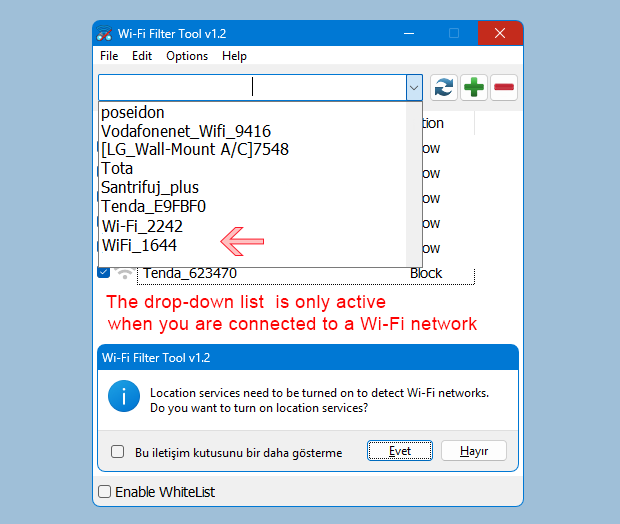
You can either Type the name of the Wi-Fi SSID in the space at the top or select it from the drop-down list and use the plus sign button to block it. The drop-down list in the software interface is only active when you are connected to a Wi-Fi network.
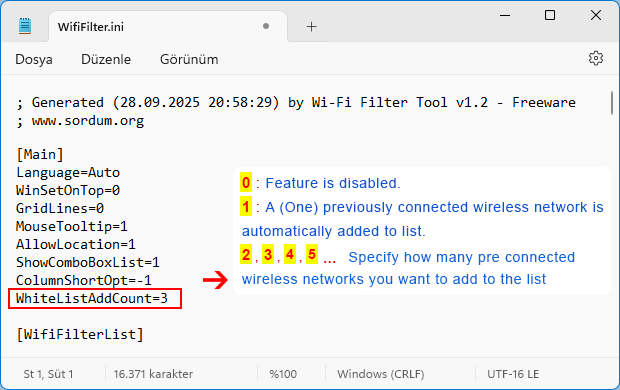
When you switch to the Enable WhiteList feature, you can use the WifiFilter.ini file to change the behavior of automatically adding recently connected wireless networks to the list.
WhiteListAddCount=0 : Feature is disabled.
WhiteListAddCount=1 : An already connected wireless network is automatically added to the list.
WhiteListAddCount=2 , 3 , 4 , 5 : Specify how many pre connected wireless networks you want to add to the list.
If you enable the WhiteList feature, SSIDs that have been blocked will be removed from the list.
2. If you want to block too many networks in the list, use whitelist mode. When you click to select the Enable white list check box, the last wireless network you connected to is automatically added to the list, so your Internet is not interrupted. By checking the Whitelist box , only the networks listed in the software interface will be visible in the WiFi list.
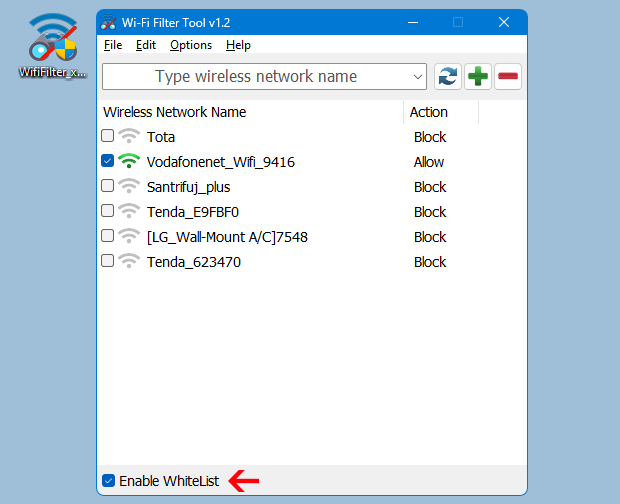
A clean list with no neighbouring wireless networks is shown in the image below.
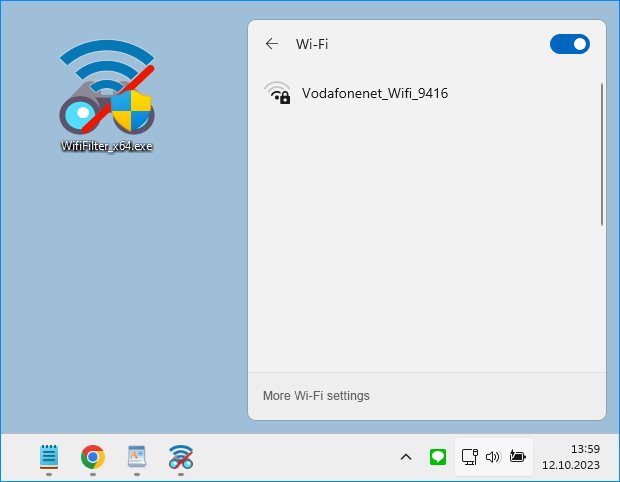
To avoid reorganising the list each time, use “Save your settings” from the File menu. To restore the saved list, you can use the “Restore your settings” function under the “File” menu.
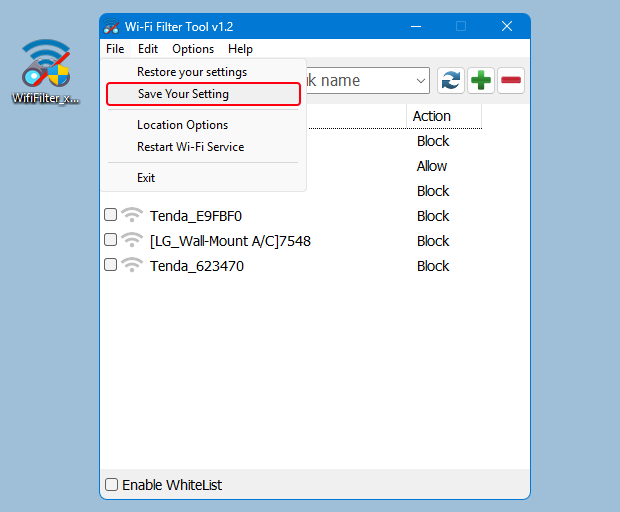
Other features such as restarting the Wi-Fi service are also available in the software File menu.
Supported languages : English ,Turkish , German , French , Bulgarian , Polish , Dutch (Nederlands) , Russian , Korean , Português (Brasil) , Spanish , Italian , Lithuaninan , Chinese (Simplified) , Japanese , Greek , Hebrew
Supported Operating Systems : Windows 11 , Windows 10 , Windows 8.1 , Windows 8 , Windows 7, Windows Vista (32 \ 64-bit).

File: WifiFilter_x64.exe │ Virustotal
MD5: 996026b89288382cc43380d2b400fbbe
SHA1: 32949dea2c058999e1501d6c45f84991afddd2b9
File: WifiFilter.exe │ Virustotal
MD5: 97baa1bbdf8c6b2c231ec3dce469c2df
SHA1: db64e69070b1ca4d60cf4415803a47c8f700d43c